CAD Drawing (CAD Program)
- 4.0
- Rating
- 10.00K
- Installs
- Free
- Price

 Analysis by App-foxy
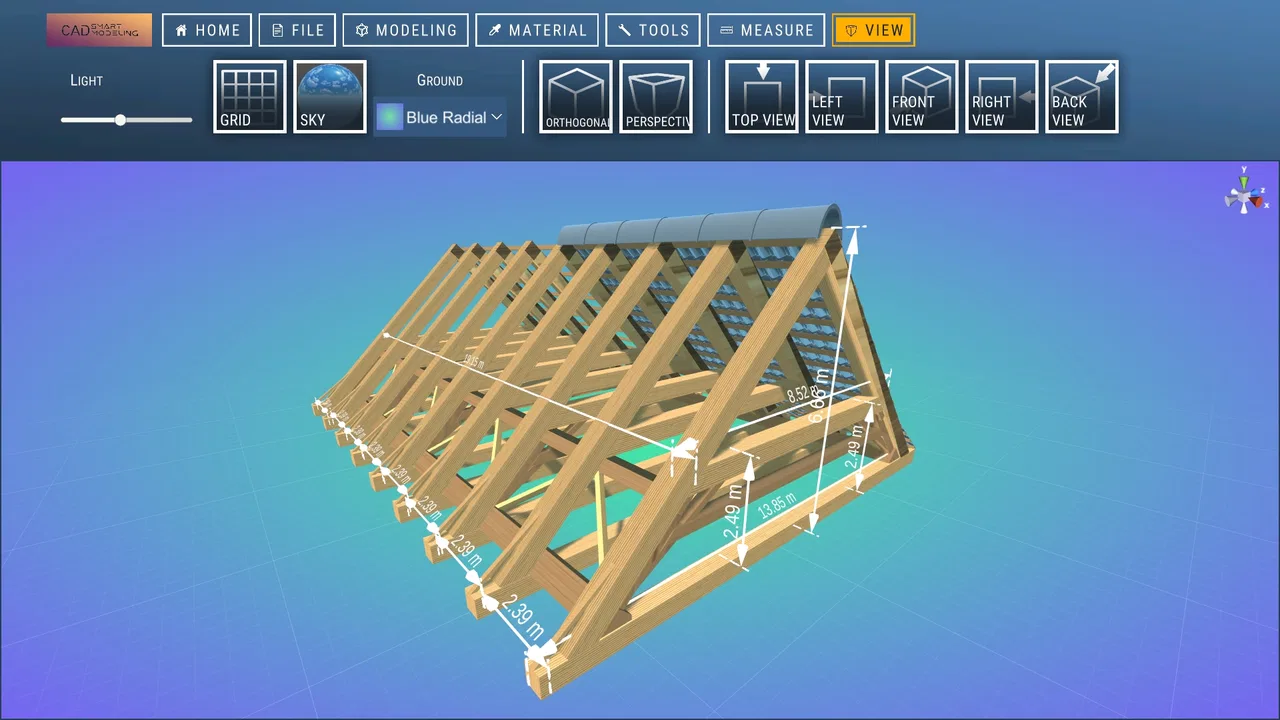
CAD Drawing is the kind of app that can feel surprisingly ambitious the first time you open it. It is a free CAD tool for drawing, modeling, and designing in three dimensions, created by Sebastian Kemper and placed in the Libraries & Demo section of the Android store. I approached it less like a quick sketch pad and more like a compact technical workspace: useful when I wanted to turn an idea into a structured object, but demanding enough that I had to slow down and think about how I was building.
That distinction matters. A drawing app usually rewards immediate gestures, while a CAD program rewards planning. CAD Drawing sits closer to the second group. Its appeal is not simply that it can display a shape in 3D; it is that it encourages me to think in terms of geometry, surfaces, proportions, and revisions. For a student, hobbyist, maker, or curious beginner, that can make a phone or tablet feel like a practical place to explore design rather than just consume content.
After the initial learning period, my opinion became fairly clear: the app is most valuable when it becomes part of a repeatable design habit. If I only open it occasionally to experiment, the interface can feel like work. If I use it to develop small ideas, inspect forms, and keep improving a project, its purpose becomes much easier to justify. That makes the long-term question more important than the first impression.
You May Also Like

 AccuWeather: Weather Radar
AccuWeather Review: A Quick, Clear Forecast for Everyday Decisions
For everyday plans, the best forecast is the one you can understand quickly. AccuWeather makes rain timing, radar, and local conditions easy to act on, with a few trade-offs.

 Hill Climb Racing
Why Hill Climb Racing Still Turns Crashes Into One More Run
A tiny car, a bumpy hill and one more upgrade: Hill Climb Racing keeps resurfacing because its simple chaos makes every near-miss feel personal.

 AliExpress - Shopping App
AliExpress Makes Global Shopping Feel Personal, but Shoppers Bear the Risk
AliExpress turns a global marketplace into a pocket-sized discovery engine. Its reach is useful, its shopping loop compelling, and its trade-offs easy to miss.

 Lords Mobile: Kingdom Wars
Lords Mobile Is a Kingdom-Building Routine, Not a Quick Match
A case-by-case verdict on the building, battles, device demands, and social commitments that make Lords Mobile rewarding for some players and exhausting for others.

 PDF Scanner app - TapScanner
TapScanner Makes Paperwork Easier to Capture, Check, and Share
TapScanner makes scanning with a phone feel less like a rescue operation and more like a dependable step in getting work done. Its capture tools are useful, though not flawless.

 Block Blast!
 Shows How Much a Puzzle Game Can Leave Out
A quiet grid game shows why puzzle players increasingly value instant clarity, repeatable skill and low-pressure play—and where the genre still needs to catch up.
More From Our News Desk
View All News


What the first week feels like
The first week is where CAD Drawing has its strongest novelty. The jump from a blank screen to a three-dimensional object is satisfying, especially for someone who has never used a CAD environment on a mobile device. I found myself testing the view, trying different drawing actions, and checking how an object looked from more than one angle. That simple change in perspective is already useful: a flat sketch can hide awkward proportions, while a model exposes them quickly.
It is also the point where expectations need adjusting. This is not the same experience as using a full desktop CAD package with a large screen, a mouse, a keyboard, and years of interface conventions behind it. On a phone, precision depends heavily on the size of the display and the care of the user. A tablet is likely to feel more comfortable for extended work, while a smaller phone makes short edits and visual checks more realistic than long construction sessions.
I would recommend beginning with deliberately simple projects instead of trying to reproduce a complicated mechanical object. A block, a basic enclosure, a sign, or a rough room layout gives enough room to learn how the app behaves without turning every action into a troubleshooting exercise. The useful lesson is not just where a button is; it is learning to separate the design into manageable shapes and to inspect the model from several viewpoints before adding more detail.
That workflow is one of the app’s less obvious strengths. Beginners often try to make the final object in one pass, but CAD Drawing is easier to understand when I treat each stage as a checkpoint. First I establish the overall silhouette. Then I look for proportions that feel wrong. Only after that do I spend time refining the form. This approach reduces the frustration of polishing a detail that later has to be moved or removed.
The app has an average rating of 4.0 from around 50 ratings, with 6 written reviews, and it has passed 10K+ installs. Those figures suggest a modest but real audience rather than a heavily established professional platform. I would read that as encouragement for experimentation, not as proof that it can replace a mature desktop workflow. Its place is more personal and exploratory: a portable way to practice CAD thinking and develop small designs.
Another first-week question is whether the app is suitable for a complete beginner. My answer is yes, provided that “beginner” means willing to learn by testing. Someone expecting a drawing canvas with instant, forgiving results may feel lost. Someone who enjoys understanding how a model is assembled will probably find the learning process rewarding. I would keep the first projects small, save versions frequently when possible, and avoid judging the app by the speed of the first session.
The app is free to install, which makes this trial period low-risk. It carries an Everyone content rating and runs on Android 8.0 or newer, so its audience is broad from an access perspective. There are in-app purchases listed from $4.99 to $99.99 per item, so I would examine what an optional purchase unlocks before treating the free version as a complete long-term workstation. The important point is that the initial experiment does not require committing money immediately.
Why 3D changes the learning curve
Working in three dimensions creates a particular kind of mental friction. When I draw on paper, I can rely on familiar visual habits. In CAD, I have to ask whether a line represents an edge, a boundary, a guide, or part of a larger form. I also have to remember that an object may look correct from one angle and poorly proportioned from another. CAD Drawing makes that lesson accessible, but it does not remove the lesson.
For that reason, I found it helpful to rotate the view regularly rather than waiting until the end. A quick inspection from the side or above can reveal a misplaced element before the model becomes crowded. This is a practical habit that generic app descriptions rarely mention, and it makes a bigger difference than trying to work faster. The more complex the model becomes, the more expensive a small oversight feels.
I also prefer using the app for visual planning before committing to a detailed design elsewhere. For example, I can sketch the rough shape of a storage box, a stand, or a simple room feature, then decide whether the proportions make sense. That does not turn the mobile model into a manufacturing-ready file by itself, but it can prevent me from wasting time on an idea that was awkward from the start.
Does it keep earning a place after the novelty?
The first month is where CAD Drawing either becomes useful or quietly disappears from the home screen. Its recurring value depends on whether I have a reason to return. The best reason is an ongoing project with several small decisions: testing a shape, comparing alternatives, adjusting the layout, or preparing a visual explanation for someone else. Without that kind of purpose, the app can become a demonstration that I enjoyed once but do not need again.
I think it works particularly well as a companion for learning. A student can use it to understand volume and spatial relationships. A hobbyist can explore an object before building a physical version. A teacher or presenter can use a simple model to explain an idea more clearly than a flat sketch would. In each case, the recurring value comes from thinking through a problem, not from opening the app merely to admire a 3D view.
A realistic everyday scenario would be planning a small shelf insert or a custom holder for a desk. I might begin with the rough outer form during a short break, inspect whether the object looks balanced, and then return later to revise the proportions. Even if the final construction happens with another tool, the mobile model helps me notice problems early. That makes the app useful in short sessions, as long as I accept that a phone is better for iteration and inspection than for highly demanding precision work.
Another strong use is communicating an idea. A rough 3D model can show a friend or collaborator what I mean when words become vague. Instead of saying that a part should sit behind another part, I can demonstrate the relationship spatially. This is a practical benefit that may matter more than producing a polished final render. The model becomes a shared reference point rather than an end product.
The current version is 3.8, and the app’s release date is March 21, 2024. I mention this because maintenance matters in a tool that I may use for ongoing work. A CAD application needs to remain comfortable enough to reopen after a break, and its value depends on whether projects remain manageable as they grow. I would keep expectations realistic: a mobile CAD app can support a personal workflow, but I would not make it the only place where important professional work exists.
That leads to a useful habit: keep a simple project routine. Before adding detail, decide what the model is meant to answer. Is it checking size, shape, arrangement, or appearance? If I cannot name the question, I am probably experimenting without direction. After each session, I like to leave the model in a readable state rather than scattering unfinished changes everywhere. This makes returning to it less tiring and helps the app feel like a tool instead of a recurring puzzle.
Compared with a paper sketchbook, CAD Drawing gives me a much better sense of depth and proportion. Compared with a general 3D modeling app, its CAD identity makes it more suitable for structured design thinking. Compared with established desktop CAD software, it is more portable and approachable but less comfortable for long, intricate sessions. That is not a flaw by itself; it simply defines the trade-off. I would choose this app for quick design exploration and learning, while a desktop alternative is the better choice when exact production documentation is the priority.
Where the maintenance burden appears
Maintenance here is less about technical chores and more about keeping the workflow understandable. A model can become difficult to revisit when I build it impulsively, add shapes without a plan, or forget why a particular part exists. The app rewards a tidy mental process. Naming or organizing work clearly, when the available workflow allows it, is more important than it may seem because the real cost arrives a week later when I no longer remember what I was testing.
I would also avoid treating every session as a race toward completion. A short inspection session can be worthwhile even if I do not add anything. Rotating the model, noticing a proportion issue, and deciding the next change is genuine progress. This mindset reduces the pressure that often makes mobile design feel cramped. The app becomes a place for decisions, not just a place for producing visible edits.
Storage and continuity are practical concerns for any design tool. I would keep important work backed up through whatever normal device or file routine I already trust, rather than assuming that one app should be the sole archive. That is especially sensible when a project has personal or practical value. The app can be the working surface, but a separate copy protects the time invested in learning and refining a model.
The purchase structure is another part of maintenance. Since optional items range from $4.99 to $99.99, I would not buy anything simply because a feature feels interesting in the moment. I would first use the free experience long enough to identify the exact limitation affecting my projects. If a paid capability solves a recurring problem, it may be reasonable; if I am still learning basic modeling habits, paying will not automatically make the workflow easier.
This is also why I would not recommend the app to someone who needs a guaranteed professional pipeline from a mobile device. A designer working against deadlines may need the predictable file handling, input precision, and compatibility of a more established desktop environment. CAD Drawing can still be useful beside that setup, particularly for brainstorming, but I would be cautious about making it the central production tool without testing the complete workflow first.
The sources of fatigue
The biggest source of fatigue is input precision. Touch controls are convenient, but they do not provide the same tactile certainty as a mouse and keyboard. When a model requires repeated small adjustments, I can spend more energy controlling the interface than thinking about the design. A larger screen helps, and a stylus may improve comfort for some users, but neither changes the basic fact that mobile CAD asks for patience.
Complexity creates a second problem. A simple object remains approachable, while a crowded model can become mentally expensive to inspect. Every added element creates another possible relationship to check. I found that the app is most enjoyable when I resist the urge to add detail merely because I can. A clean, rough model often answers the design question better than a complicated one that is difficult to navigate.
There is also a difference between visual confidence and engineering confidence. A model can look convincing on screen without proving that it will fit, move, carry weight, or be easy to manufacture. I would never treat a pleasing shape as a substitute for measurements and real-world testing. The app is excellent for communicating form and exploring alternatives, but users should bring outside checks when safety, fit, or structural performance matters.
That limitation affects who should skip it. If I want a fast illustration, a regular drawing app may be less frustrating. If I need advanced professional modeling, a desktop CAD package is likely the better investment. If I dislike learning technical interfaces, the first week may feel like too much effort for occasional sketches. CAD Drawing makes sense for people who specifically want the discipline of 3D design and are comfortable trading some convenience for portability.
On the other hand, I would not skip it merely because I am inexperienced. The app’s free entry point makes it reasonable to test, and the Everyone rating makes it suitable for a wide audience. The key is to judge it after a few purposeful sessions rather than after a single confused opening. Start with a small object, inspect it from multiple angles, and see whether the process itself interests you. If it does, the learning curve becomes part of the value.
My long-term verdict
CAD Drawing earns lasting space when I use it as a thinking tool, not as a miniature replacement for every desktop CAD system. That is the fairest way to understand it. It gives me a portable environment for drawing, modeling, and exploring 3D forms, and it can make abstract design ideas easier to see. Its strongest moments come from short, purposeful iterations: build a rough form, rotate it, notice a problem, and try a better version.
The app is less convincing when I demand effortless precision, deep professional production features, or a completely frictionless interface. Touch-based modeling can become tiring, and more involved projects require organization that beginners may not have developed yet. The optional purchase range also means I would evaluate upgrades carefully rather than assuming that every serious use requires spending money.
Still, I appreciate the balance between accessibility and technical thinking. The developer, Sebastian Kemper, has made something that can introduce mobile users to a more structured way of designing than ordinary sketching provides. Its 4.0 average and growing install base fit my experience: it is useful and promising, but it is not a universal answer for every kind of CAD work.
My recommendation is straightforward. Try it if you want to learn spatial design, test household or hobby ideas, or keep a portable modeling tool nearby for early-stage concepts. Use a tablet when possible, begin with simple forms, rotate the model often, and keep a separate copy of work that matters. Give it a clear role in your routine instead of expecting it to create value on its own.
After the novelty fades, the app survives on repetition. If I return to it once a week to answer a real design question, it remains worthwhile. If I only open it to make one impressive shape and then leave it untouched, another simpler drawing app may serve me better. For the right user, though, this free CAD app can turn spare moments into useful practice and give unfinished ideas a visible, three-dimensional starting point.
FAQs for CAD Drawing (CAD Program)
01What is CAD Drawing and how does it work on mobile devices?
CAD Drawing is a mobile application designed to facilitate computer-aided design (CAD) on the go. It allows users to create, edit, and view detailed 2D and 3D drawings directly from their smartphones or tablets. The app provides a user-friendly interface with tools for precision drawing, layer management, and real-time collaboration, making it suitable for professionals and students alike.
02Is CAD Drawing suitable for beginners or is it more for professionals?
CAD Drawing caters to both beginners and professionals. The app offers tutorial guides and an intuitive interface that newcomers can easily navigate. For professionals, it includes advanced features such as multi-layer editing, precise measurement tools, and compatibility with various file formats like DWG and DXF. This versatility ensures it meets the needs of users at all skill levels.
03What devices and operating systems are compatible with CAD Drawing?
CAD Drawing is compatible with both Android and iOS devices, supporting a wide range of smartphones and tablets. The app is optimized for touch screens, allowing for smooth manipulation of designs. It requires a minimum OS version, typically Android 5.0 or iOS 11.0, ensuring that it runs efficiently on most modern devices.
04Does CAD Drawing support collaboration and file sharing?
Yes, CAD Drawing supports real-time collaboration, allowing multiple users to work on the same project simultaneously. It also provides various file-sharing options, enabling users to export and share their drawings in popular formats such as PDF, DWG, and DXF via email or cloud services. This functionality is crucial for teams working remotely.
05Are there any costs associated with using CAD Drawing?
CAD Drawing typically offers a free version with basic features, but advanced tools and functionalities may require a subscription or one-time purchase. Pricing can vary, and it's advisable to check the app store for the latest information. Subscriptions often include additional benefits like cloud storage and access to premium templates.
Pros
- Intuitive interface for beginners.
- Extensive library of templates.
- Supports 3D modeling effectively.
- Fast rendering and processing.
- Regular updates with new features.
Cons
- Steep learning curve for advanced tools.
- Limited export formats available.
- High system requirements for optimal use.
- Occasional crashes on older devices.
- Subscription model can be pricey.

CAD Drawing (CAD Program)
Gallery